
Installation

Step 01

Navigate to the Download menu.
Click “Download and Install with the Combat Arms Downloader” to begin downloading the client.
Step 02

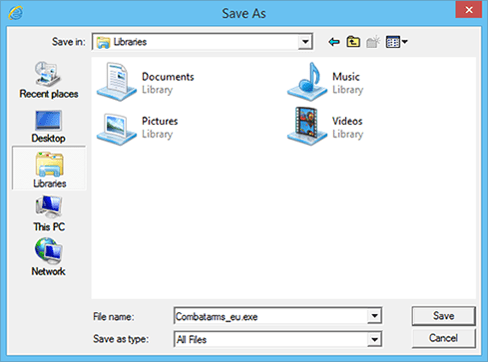
When the download dialog appears, click “Save” to begin downloading.
Step 02: Click Save in the download dialog.

Step 03

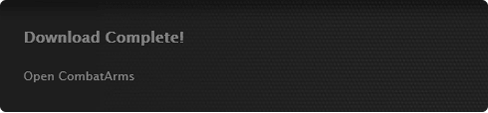
Once the download is complete, the installer will start automatically.
If it does not, double-click the Combat Arms installer icon.
Step 03: Start the Combat Arms installer.

Step 04

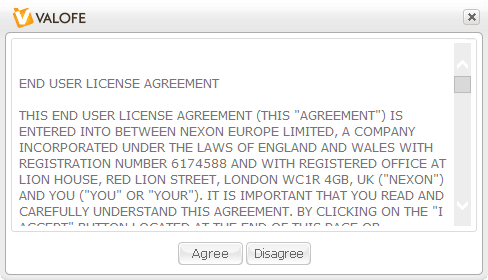
Read and accept the End User License Agreement to continue to the next step.
Step 04: Accept the End User License Agreement.

Step 05

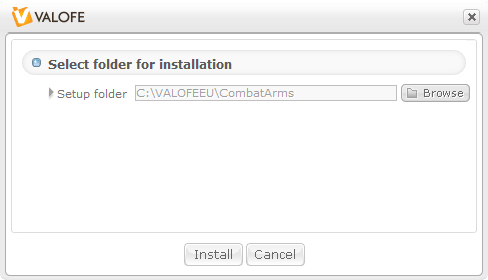
Confirm the destination folder where Combat Arms will be installed.
Click “Install” to start the installation.
Step 05: Choose the destination folder and click Install.

Step 06

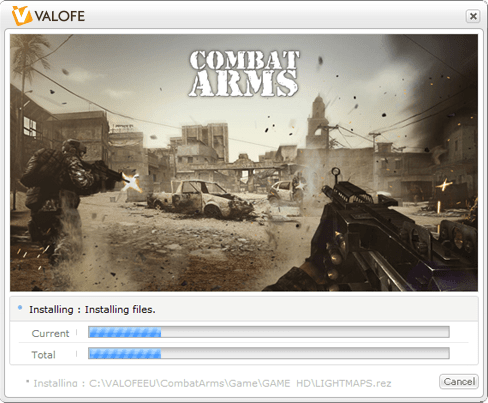
When the installation is complete, click “OK” to close the window.
Step 06: Complete the installation and close the window.